
 Design System
Content accessibility

01. Introduction
Content accessibility
By making sure that every text, visual content, and element we create is accessible to all, we show that we care – both about what we do, and for whom we do it.
We care that everyone has an access to what we do: they see it, use it, and understand it.
Why these guidelines matter?
Accessibility improves the experience for all users, not just those with specific accessibility needs.
It shows our professionalism and attention to detail – building lasting trust.
This document helps us align with the Web Content Accessibility Guidelines (WCAG), and reflects the recent European Accessibility Act (EAA) and local regulations.

Key Accessibility Principles: Perceivable | Operable | Understandable
What do we cover?
Simple rules
- Writing alt texts for images and banners
- Structuring text properly for them to be accessible
- Using colors and contrasts safely
- Making links, buttons, and navigation clear and usable
- Handling content from external tools
Structure
For each of the three key accessibility principles – for it to be perceivable, operable, and understandable – there are specific requirements (“success criteria”) and examples provided bellow.
02. Perceivable
Users can recognise and use our service with the senses that are available to them
Alt text: images and assets
Why alt texts?
Alt texts help users who cannot see images understand the content. They are important for accessibility, as well as SEO.
All non-text content (images, video, audio, buttons, and other content that isn’t conveyed by text) needs to have alt text that provides the same information found in the content.
How to write an alt text?
- Describe the main idea of the image.
- Focus only on what is important for the user to know.
- Be brief and specific (ideally 5–15 words).
- If the image has visible text, include it in the alt description.
- Do not repeat obvious information (e.g., "photo of...").
Alt text: do & don’t
If the image is purely decorative (such as a dividing line between sections):
- Leave the alt text empty (set as "") so screen readers skip it.
Alt texts for images in product galleries are generated automatically and cannot be changed.
- However, you can add suitable alt texts manually for images used in extra content created in the page builder.
Do

Pregnant woman in a grey shirt gently holding her belly
Don't

Top 10 tips for a healthy pregnancy
Alt text: graphics, banners
Visual banners often carry important messages – but not everyone can see them.
To make sure no one misses key information:
- In general, avoid placing key text inside images only – write it outside of them as well.
- Whenever text is part of a graphic, include the same wording in the alt text.
- When you receive such a banner, add a clear alt text describing what it says. For instance here, the alternative description should contain ”Advantageous club prices".
Correct alt text for this image: "Text on the left that reads ‘Advantageous club prices,’ a Dr. Max Club card graphic in the center, and on the right a smiling elderly woman holding a wallet with a young girl beside her standing in a pharmacy aisle."

Example banner illustrating the Dr.Max Club promotion
Alt text: correct text formatting
Use headings and paragraphs correctly:
- Headings (H1–H6) are for titles and section names.
- Paragraphs are for regular text.
- Also make sure that that headings accurately identify the content of their section.
Spacing is caring:
- Segment your content using diverse elements like bullet points, icons, and generous whitespace.
- It reduces cognitive load, supports focus, and makes information easier to scan and remember.
Why it matters:
- Screen readers and assistive tools rely on correct structure.
- Good structure helps users navigate quickly – especially on mobile.
Text structure: tips
✅ Each page should have a clear heading hierarchy (H1 first, then H2, H3...).
✅ Do not use a paragraph styled to look like a headline – use real headings.
✅ Keep paragraphs short and simple for better readability.
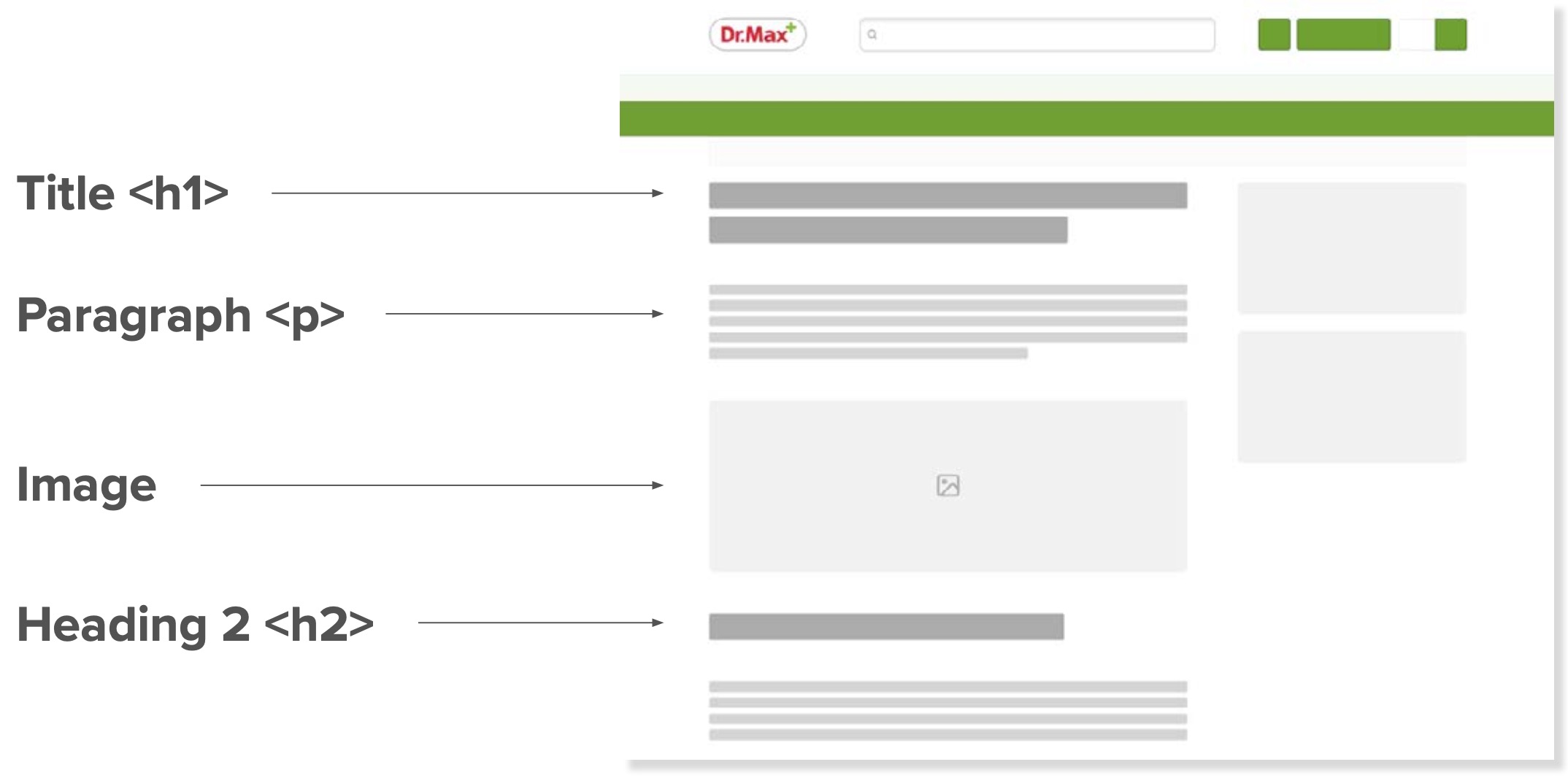
Diagram demonstrating how the HTML semantic elements h1, p, img and h2 map to sections of a webpage layout.
Coloring: contrast
To ensure visibility and accessibility, all colour combinations must meet WCAG 2.1 contrast standards:
- Minimum 4.5:1 contrast ratio for normal text
- Minimum 3:1 for large text (above 24 px), as well as icons and UI graphics
- Always test light-on-dark and dark-on-light combinations
- Ensure readability on both digital and print surfaces
Incidental content:
- Text or images of text that are inactive (e.g. disabled buttons), purely decorative, hidden, or part of a complex image have no contrast requirement.
- Nevertheless, aim for at least 3:1 when possible for the best clarity.
Logotypes:
- Text within logos or brand names is exempt from contrast rules.
See detailed examples of accessible colour use in the dedicated Content Guidelines
Double-check your contrast with the Dr. Max Colour Checker
Font size and readability
Small text is one of the biggest barriers to accessibility.
Size & spacing:
- Use a minimum font size of 16 pixels across all Dr. Max content.
- 14 pixels is the absolute minimum (use only in justified exceptions).
- Reminder: When using pagebuilder-integrated fonts, spacing/sizing is already handled – just double check visually.
- Ensure enough line height and margins so the text feels open, not cramped.
- This assists users with dyslexia and makes it more comfortable for all.
Why it matters:
- Small text is hard to read – especially for older users and on some mobile devices.
- Bigger, clear fonts help everyone absorb information faster and more comfortably.

Example illustrating that 10 px text is too small, 14 px is acceptable, and 16 px is the preferred baseline for comfortable reading.
03. Operable
Make sure users can find and use your content, regardless of how they choose to access it.
Descriptive linking
Use descriptive links so users know where a link will take them, or what downloadable linked content is.
Why it matters:
- Screen readers read links separately – "Click here" or "More" is confusing.
- Clear links help users navigate confidently.
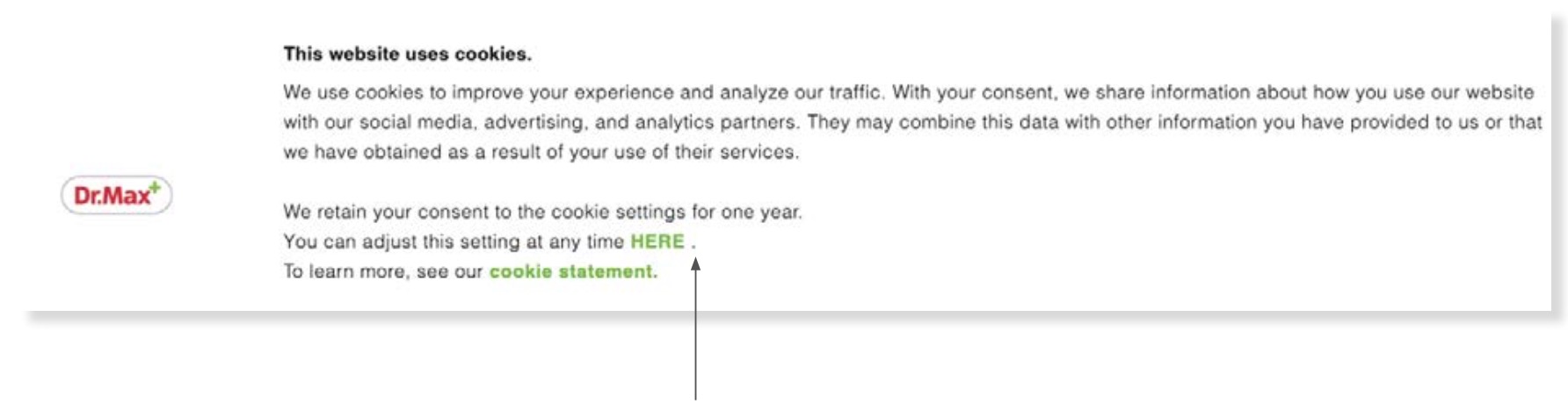
Example of poorly written link in a cookie-consent banner
When visually impaired users use assistive technologies to display a list of links, a link labeled simply as "HERE" does not tell them where it leads. Instead, always use meaningful link text that describes the destination — for example: ✅ Do "Cookie Statement" ❌ Don’t "Click here."
Button sizing and spacing
Buttons should be easy to click — for everyone. Follow these simple rules to make sure interactive elements are big enough or well-spaced so they are easy to select.
Size for buttons:
Recommended: 44 x 44 pixels (recommended for touchscreens, mobile, and desktop users)
Minimum: 24 x 24 pixels
Space around buttons:
Ensure at least 8px spacing between touch targets.
Do
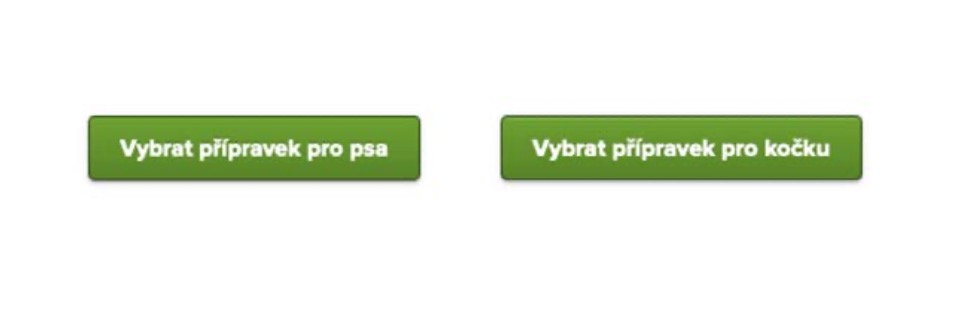
Correct spacing
Don't
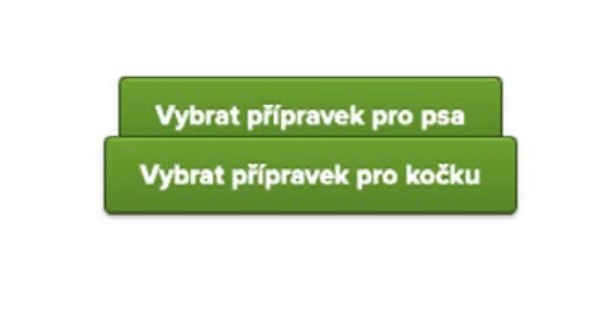
Wrong spacing
Third-party tools and responsibility
Even if a feature (like a chat widget, review tool, video player, or consultant pop-up) is provided by a third party, users perceive it as a part of our website.
What to check when using external tools:
Is it readable and accessible on all devices (desktop and mobile)?
- Flag it if not
Does it work with screen readers and keyboard navigation?
- Flag it if not
Does it block or cover important content?
- Change the content accordingly if so
Is it clear what the tool does, and how to interact with it?
- Explain in content, or flag it if it is beyond simple explaining
Why it matters:
- Customers don't know (or care) who built a tool – they expect Dr. Max to care about the whole experience.
- Every piece of the page should meet our standards of clarity and accessibility.
Challenge example:
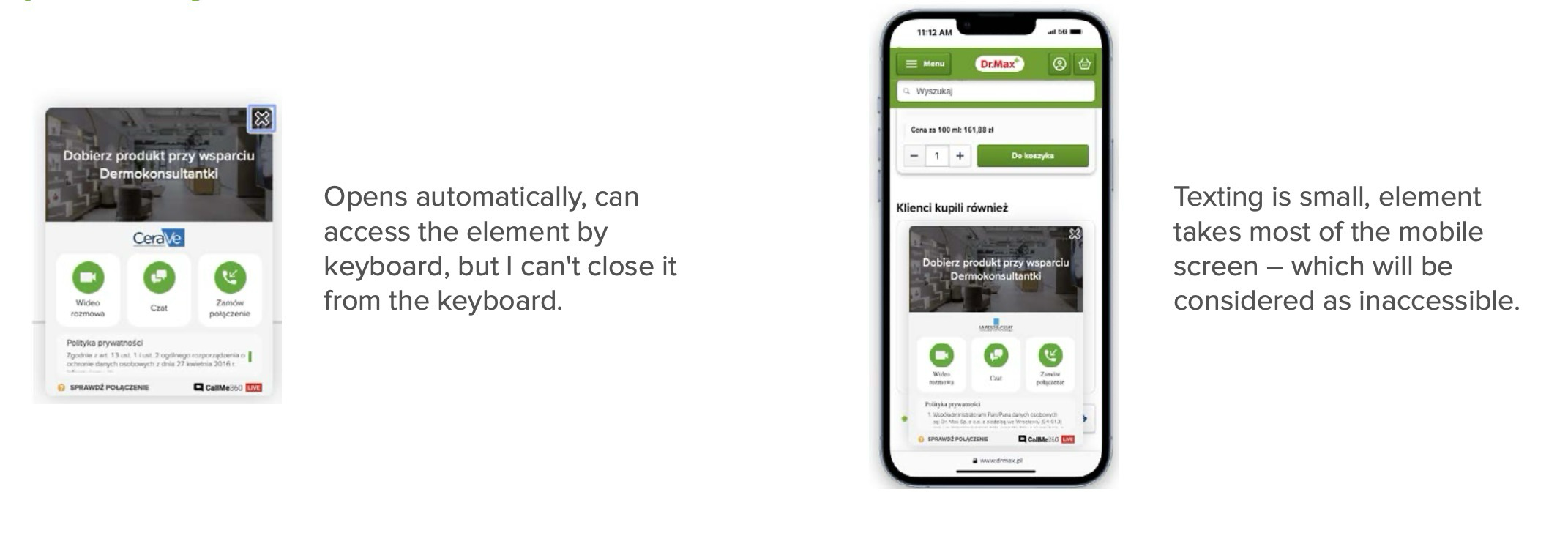
Consultation widget that can’t be closed via keyboard on desktop and is too small and intrusive on mobile.
04. Understandable
Make sure people can understand your content and how the service works.
Consistent components and patterns
Make sure components used for the same function look and behave consistently across all pages. Don’t swap out UI patterns (like category cards, buttons, or blocks) unless the function or context truly changes.
To keep in mind:
- ✅ Use the same type of category cards across relevant pages – don’t alternate styles without reason.
- Apply a consistent visual and functional treatment to elements like banners, tiles, or content blocks.
- Maintain clear rules for spacing, alignment, and behaviours (what happens upon hover, tap, click…).
- ❌ Avoid subtle inconsistencies that break the user’s mental model of the interface.
Why it matters:
- Predictable design allows users to navigate without re-learning patterns or guessing.
- It’s especially important for users with memory limitations, cognitive load, or focus difficulties.
Language and cognitive accessibility
To ensure content is truly accessible, go beyond visuals and measurable standards. Focus on how your language and sentence structure support clarity for everyone.
Ask yourself:
- Is this content understandable at first glance?
- Does it follow a logical order?
- Is it inclusive for people with ADHD, dyslexia, or just fatigue?
✅ Use:
- Clear vocabulary
- Short, direct sentences
- Logical flow of ideas
❌ Avoid:
- Figurative language
- Long-winded explanations
- Dense blocks of text
For more guidance, see Bristol Inclusive Writing or W3C Writing Tips.
05. Robust
Make sure your content is build well enough to serve everyone – and every tool.
Built well from the inside
Assistive tools like screen readers rely on well-structured HTML. If the code is messy – missing tags, repeated IDs, broken nesting – the content might disappear or become unreadable.
How to do it:
- Avoid duplicate ID attributes
- Use proper opening and closing tags (such as <p> your text </p> .)
- Don’t repeat attributes inside one element
- Validate your HTML
Why it matters:
- If the code is flawed, assistive tools may misread, ignore, or crash on your content.
- Proper coding means no one is left behind.
Custom components
Custom HTML – if you have to use it – needs help to speak the language of accessibility. Such elements
must come with names, roles, states, and values.
How to do it:
- Use semantic HTML when possible – screen readers handle it best
- Always label form fields – never rely on placeholder text
- Use ARIA attributes where needed ( role , aria-label , aria-checked , etc.)
- When using iframes, label each <iframe> with a clear <title>
Why it matters:
Without this, a user may not even know your feature exists – let alone interact with it.
06. Summary
Follow the key principles to show care
✅ Make it Perceivable
- Ensure all users can see or hear the information.
- Provide alt texts, clear structures, and readable fonts.
- Think beyond visuals: every important message must be accessible through text or assistive technology.
✅ Make it Operable
- Build content and features that users can navigate easily – with keyboards, screen readers, or other tools.
- Ensure links, buttons, and external tools are clear, consistent, and mobile-friendly.
✅ Make it Understandable
- Structure text logically, label links meaningfully, and keep interactions predictable.
✅ Make it Robust
- Ensure your content is coded well enough to serve all technologies.
✅ Why it matters:
- Accessibility is not just a technical requirement – it help us show our care both to people with disabilities, as well as to ease the path to our product for anyone else.
Further reading
- Accessibility at Dr. Max — How we approach accessibility
- Category color-coding — Stay on-brand with colours from Dr. Max palette