
 Design System
Components
Button
Let users take action, make choices, and move forward.
Variant
There are various variants of buttons. To choose the right one, consider the context of the situation.
| Type | Description |
|---|---|
| Primary | The primary button is used for the most important call-to-action on a page. On any given page, use only one primary button. Not every screen requires a primary button. |
| Secondary | The secondary or light button is used for general actions. Due to its neutral visual weight, it's the preferred choice for most cases. |
| Tertiary | Use this button to avoid clutter around borders, for example, in bars or search bars. |
| Blue | Use this button rarely. Mainly in situations where you need another type of "primary" button. E.g. in situations where the screen is filled with "Add to cart" (green) buttons, and you need to emphasise an action (e.g. "Load more" action). |
| Red | The Red button grabs users' attention and asks them for confirmation before completing a destructive action, such as removing or deleting. This button also serves as a Primary (brand) button in drmaxdrogeria.pl |
Sizes
There are several sizes of buttons. As with button types, consider the context of the situation when selecting the appropriate size.
States
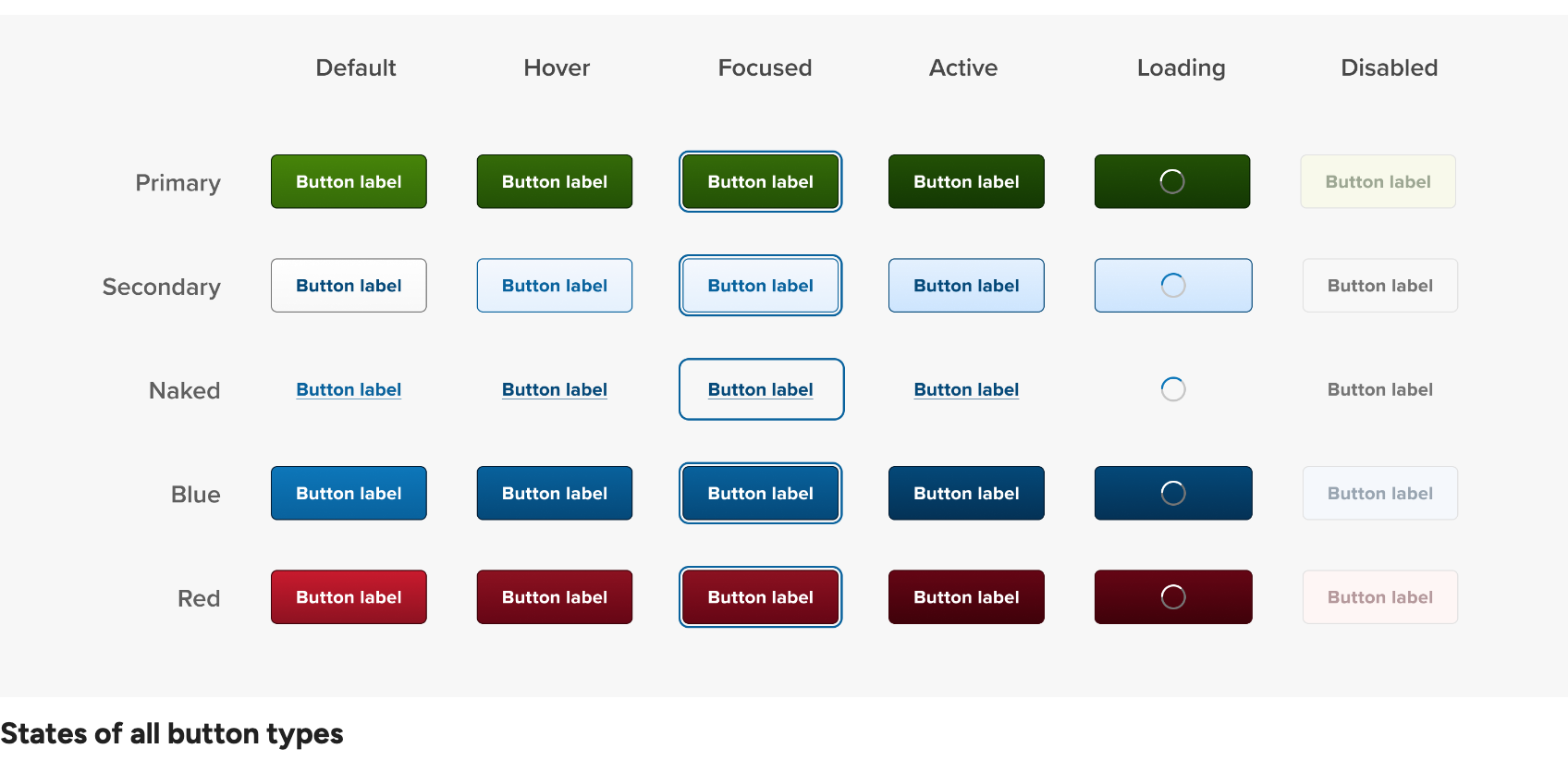
| State | Description |
|---|---|
| Active | The active state of a button is when the user's cursor is not hovering over it, and the button isn't disabled. |
| Hover | A button is in a hover state when the user's cursor is on it, but they haven't clicked it yet. |
| Focused | A button is in the focus state when the user targets it via the keyboard. |
| Pressed | The button is in a Pressed state after it has been clicked. |
| Loading | The button is in a loading state when an action is running. All the current buttons support the loading state, and the width does not need to be changed. The on-hover cursor type will be set to 'in progress' to indicate that the action is being completed. |
| Disabled | The button is Disabled when its action is blocked by something that needs to be completed first. The on-hover cursor type will be in the 'not-allowed state' to indicate that the requested action will not be executed. |
Icon
| Variant | Description |
|---|---|
| Label only | Default variation of the button. |
| Left icon | Place an icon on the left side of the button to support a call to action visually. |
| Right icon | Place an icon on the right side of the button to indicate movement or shift, such as an arrow to the right of the Next button. |
| Icon-only | Use an icon-only button (without text) for actions that are clear from the icon, especially when there's not enough space for a text button. |